1. Log In to the System #
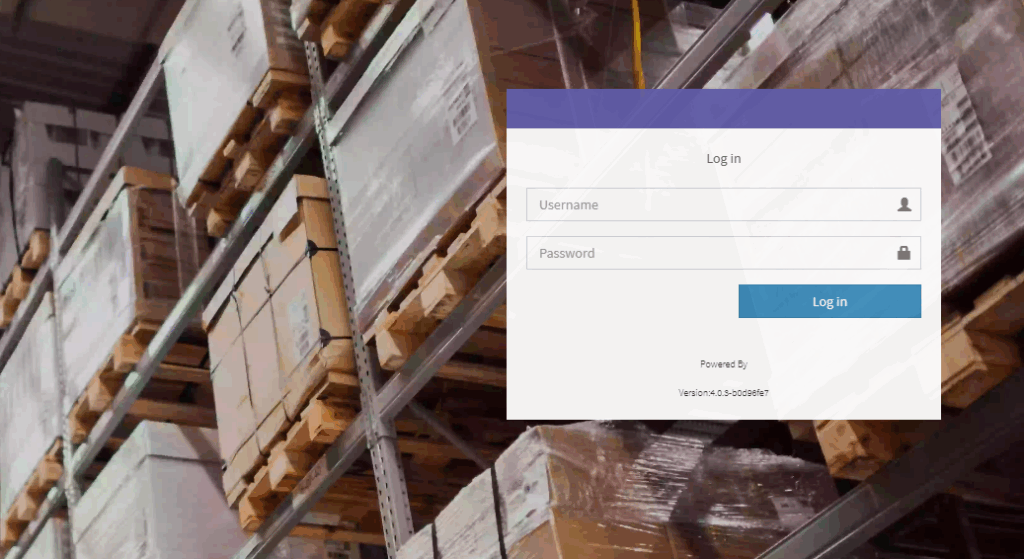
Go to: http://esl.pfa.com/admin/auth/login
Use the login credentials for the store you want to access.
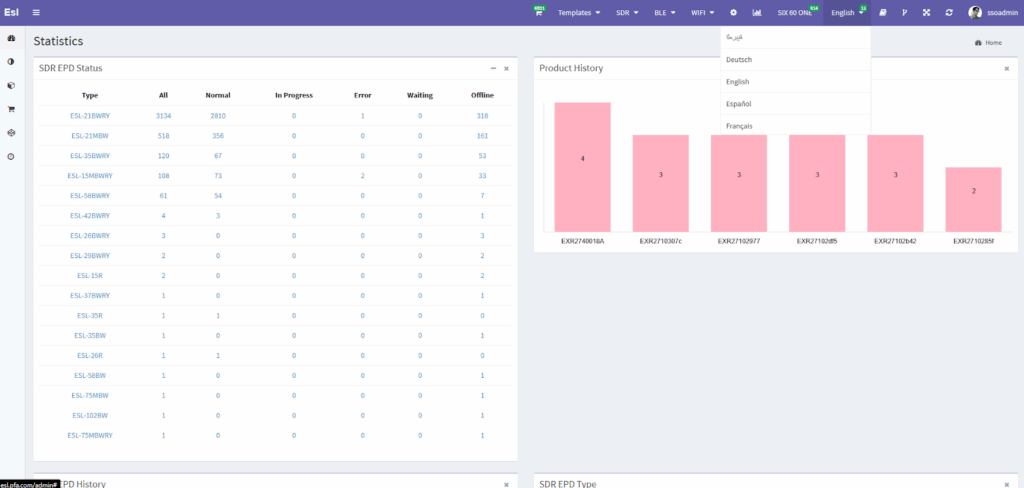
2. Change the Language setting to your preferred language #
3. Navigate to Device Settings #
● After logging in, click on “Device” in the menu.
● Under terminal, click on “SDR”.
● Then, click on “EPD”, and select “Device” again.
4. Search for the Item #
Use the barcode or item code in the search bar to find the product you’re looking for.
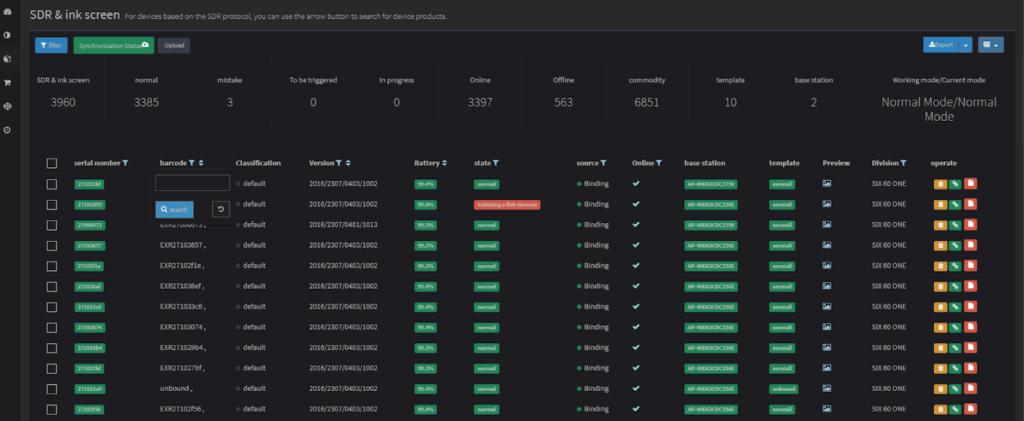
You can find the barcode or item code here:
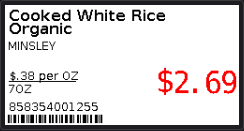
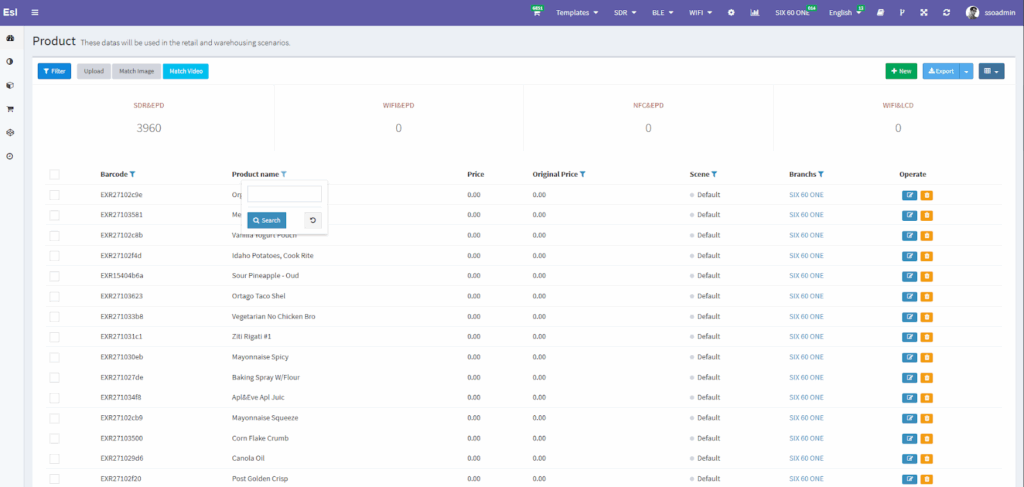
If you don’t have the barcode or item code, you can search for it with these steps:
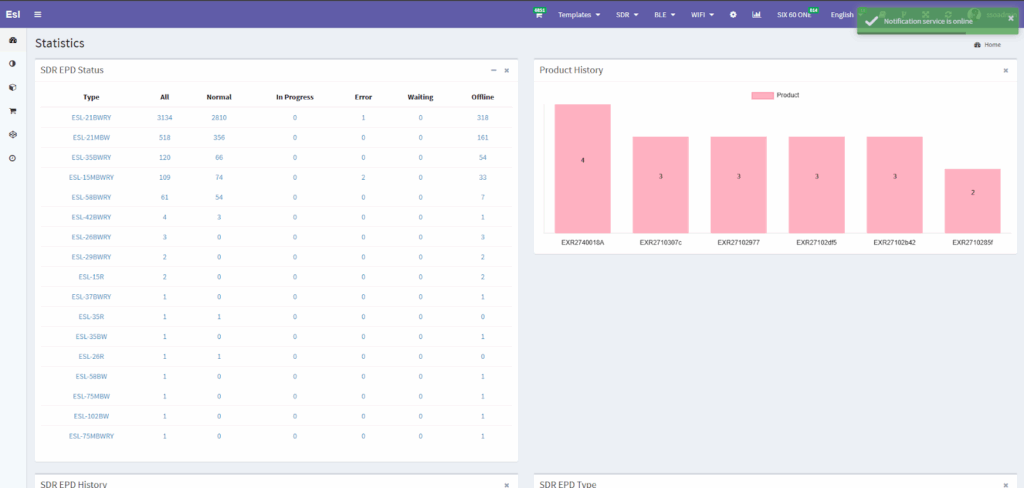
- On the home page, click on the icon shown on the image below to display all the existing bound tags with your store.
- Under “Product Name,” type in the name of the product you’re looking for.
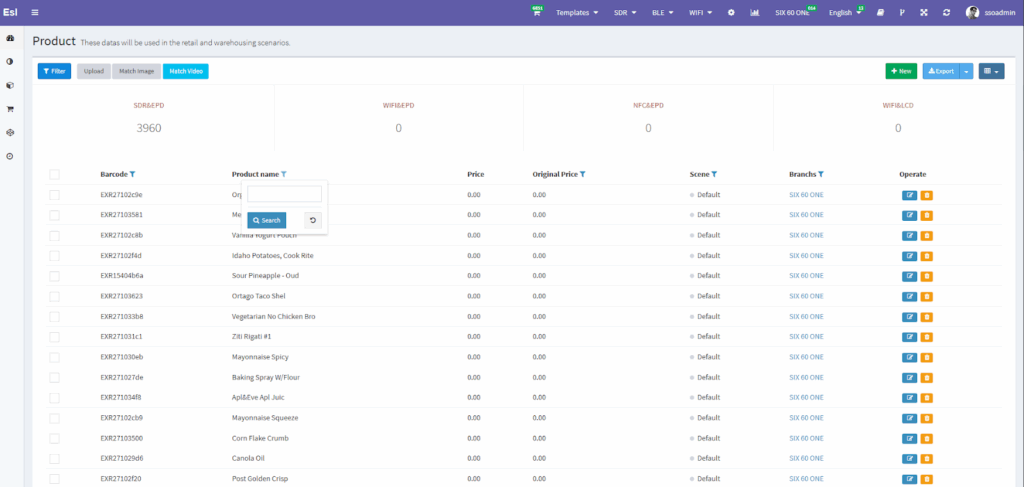
- Once searched, the barcode will appear on the 1st column under “Barcode”
5. Preview Tag Details #
In the preview section, you’ll see the ESL tag information.
Check if the tag displays the correct details for that item.